How to Convert HTML to Elementor: The Complete Guide

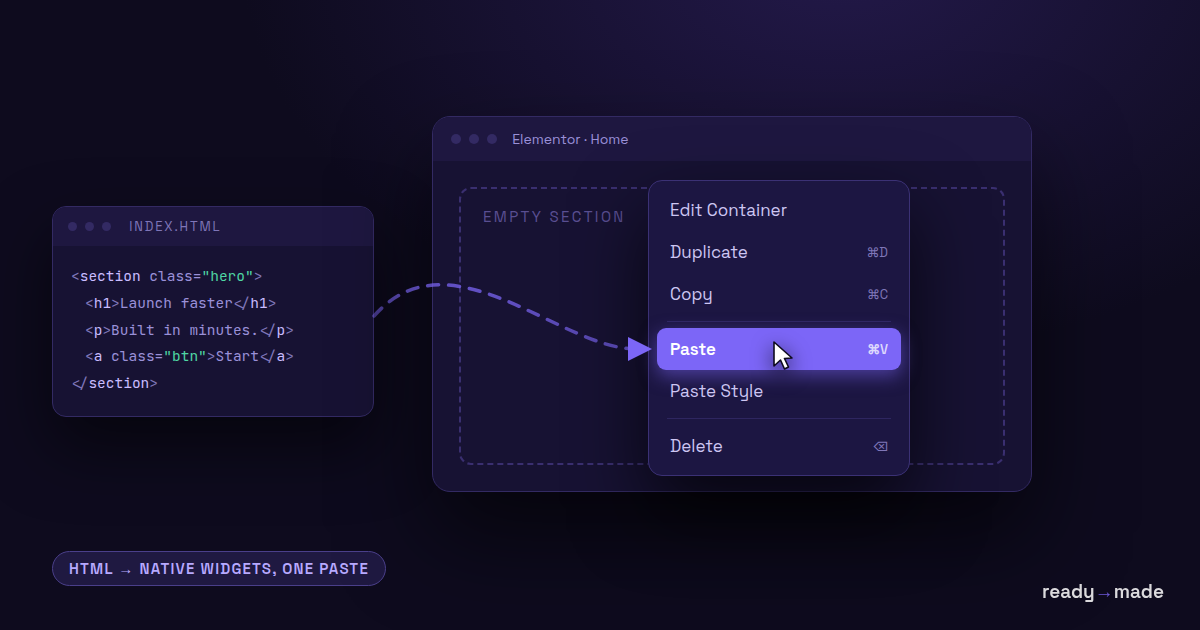
You have HTML. A landing page from a designer, a section your AI assistant generated, an old static site, a template you bought. The client works in Elementor. The usual answer is rebuilding it widget by widget while the finished page sits right there in your other tab.
This is the complete guide to converting HTML to Elementor: how the conversion actually works, what determines output quality, and the mistakes that make people think a converter "doesn't work" when the input was the problem.
Try the free HTML → Elementor converter → wpconverters.com/html-to-elementor
Why you cannot just paste HTML into Elementor
Elementor does not store HTML. It stores a JSON tree of sections, containers and widgets, and renders HTML from it at runtime. An HTML widget can hold a blob of markup, but that blob is dead weight: not editable as Elementor elements, not responsive through Elementor controls, not themeable. A real conversion translates your markup into that JSON tree so headings become Heading widgets, buttons become Button widgets, and your flex and grid layout becomes native containers.
The three-step workflow
1. Get your HTML and, crucially, your CSS
Paste a full page, a section fragment, or use Convert from a live URL and the tool fetches the page and its stylesheets for you. If you paste manually, this is the step people get wrong, so it gets its own section below.
2. Convert and read the report
Hit Convert. You get Elementor paste-JSON plus a conversion report: how many sections and widgets, what percentage of your CSS declarations mapped, and a warning list for everything that did not. The report is honest by design. If something was dropped, it says so.
3. Paste into Elementor
Copy the output, right-click inside the Elementor canvas, choose Paste, and allow clipboard access if asked. There is also a one-click sandbox if you want to see the result in a real Elementor editor before touching your own site.
The number one quality factor: complete CSS
Most "bad conversions" we see in our anonymized telemetry share one cause: the page's styles never made it into the input. Modern pages keep their design in external stylesheets and design tokens. If you paste HTML whose <link rel="stylesheet"> files are missing, every color, font and spacing rule defined there is simply not present in what you gave the tool. The output renders in your theme's defaults and looks nothing like the original.
The tool now detects this: if your input references stylesheets it cannot see, or uses CSS variables that are never defined, it tells you immediately and offers to fetch the stylesheets for you. Take the offer. The difference between converting bare HTML and converting HTML plus its real CSS is the difference between a wireframe and the page.
What maps to native Elementor
- Layout: flexbox rows and columns, CSS grid (including uneven track lists), absolute-positioned badges and overlays, sticky-free heroes with viewport heights.
- Widgets: headings, text runs (merged into sensible text editors, not one widget per line), images, buttons with their colors and radii, icons, dividers, embeds and videos.
- Style: typography incl. responsive clamp() sizes, gradients, box shadows, borders, backgrounds, CSS variables resolved to real values, media queries mapped to Elementor's tablet and mobile settings.
- Free Elementor: everything above uses free-version containers and widgets. Pro is not required.
What to expect from the warnings
Hover states and pseudo-elements have no free-Elementor equivalent and are listed, not silently dropped. Forms are preserved as a single HTML widget because faking a working form would be worse. Scripts never survive; if your page is a JavaScript app shell with no real markup, the tool tells you to paste the rendered DOM instead of view-source.
Common mistakes, quick fixes
- Pasting view-source of a JS-rendered page. The visible page exists only after scripts run. Open DevTools, copy the rendered outer HTML instead, or use the URL fetcher.
- Forgetting the stylesheets. Covered above. It is the big one.
- Converting a whole page when you need a section. The converter handles fragments happily. Convert the hero alone if the hero is all you need.
- Judging by the editor preview only. Check the front end. Theme CSS interacts with any imported layout.
FAQ
Is it really free?
Yes, and unlimited. The conversion runs in your browser.
Can it convert AI-generated HTML?
Yes, and it is one of the most common uses. Generate a section with your AI of choice, convert, paste. Inline styles and Tailwind-style utility CSS both work.
Does it work with Elementor Pro?
The output works in free and Pro alike. Pro adds nothing required.
What if my conversion looks wrong?
Use the rating and feedback buttons in the tool and tell us what the original had. Reports feed directly into the fix queue; the converter ships improvements weekly, and most of them come from exactly these reports.
Convert your HTML now → wpconverters.com/html-to-elementor