How to Convert AI-Generated HTML to WordPress
 Philipp Gappmaier
August 22, 2026
Philipp Gappmaier
August 22, 2026 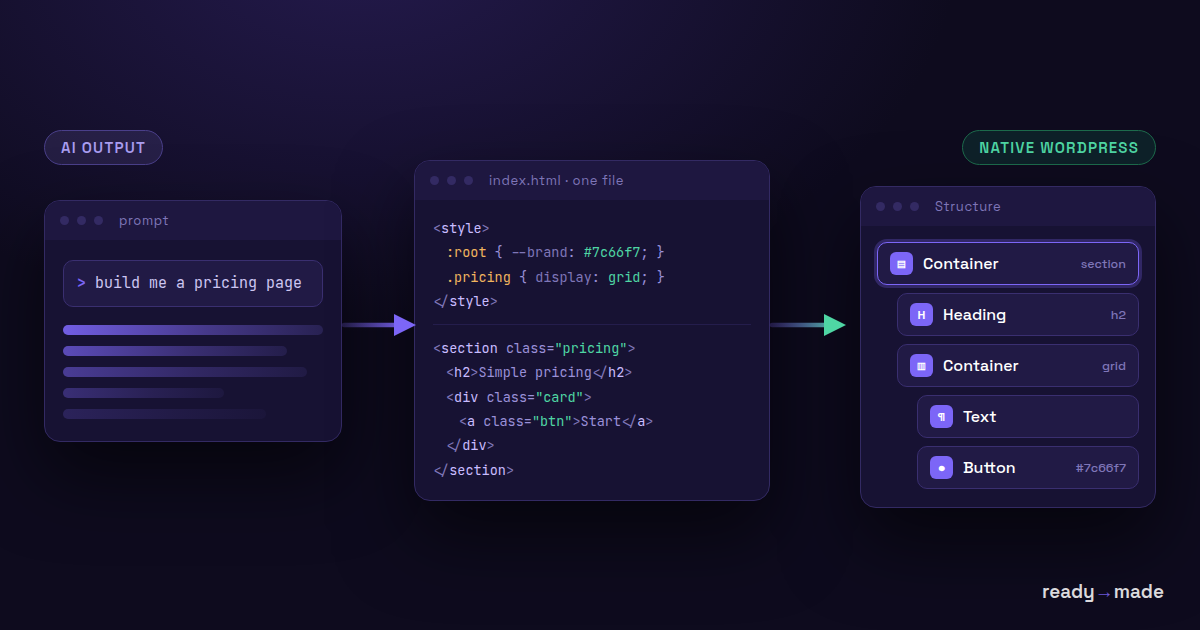
An AI wrote you a landing page. It looks good in the browser preview, the copy is close enough, and the whole thing took four minutes. Now it has to live in WordPress, where your client edits content, your forms run, and your SEO plugin lives.
That last step is where most of the four minutes you saved goes away again. Here is how to keep it.
Convert your AI-generated HTML now → wpconverters.com/html-to-elementor
What AI actually gives you
We see the real inputs people run through our free converters, anonymized. The pattern is consistent and it is not what most WordPress tooling expects.
- Self-contained single files. One HTML document with a
<style>block in the head. No build step, no external stylesheet. - Design tokens. A
:rootblock full of custom properties:--brand,--ink,--radius-lg. Roughly two in five pages we see are built this way. - Utility classes. Close to half carry Tailwind-style classes, whether or not Tailwind is actually loaded.
- Modern CSS. Grid, flex,
clamp()for fluid type,oklch()colors, container-ish breakpoints.
That is a good page. It is also a page that no WordPress importer was designed for, because importers were built for exports from other builders.
The three ways people try to do this
1. Paste it into a Custom HTML block
Fastest, and it works on day one. The problem shows up on day thirty, when the client wants to change a heading. Now they are editing raw markup, or calling you. The page is also invisible to your theme's global styles, so it drifts visually from the rest of the site as soon as anything changes.
A Custom HTML block is a black box. Your CMS stops being a CMS for that page.
2. Rebuild it by hand in the builder
Highest fidelity, and genuinely the right call for a small hero section. For a full page it is an hour of dragging widgets and retyping hex codes that already exist in the file in front of you. You are doing work a machine can do deterministically.
3. Convert it into native builder elements
Read the HTML and the CSS, resolve the cascade, and emit real Elementor containers, Gutenberg blocks, Bricks elements or Oxygen structure. Every heading is a heading widget. Every color lands in a native color control. The client edits it like anything else on the site.
This is what our converters do, in your browser, for free. Nothing is uploaded.
Do this before you convert
Conversion quality is decided almost entirely by what you paste in. Three habits account for most of the difference.
Bring the CSS with the HTML
This is the big one. If your page references an external stylesheet that you do not paste along with the markup, the converter sees unstyled structure and gives you unstyled output. Every color, every spacing value, every layout rule lives in that file.
If the AI gave you one self-contained file with a <style> block, you are already fine. If it split them, paste the CSS into the optional CSS field. If the page is already live somewhere, use the URL field and we will fetch the page and its stylesheets for you.
Make sure the markup is really there
If the AI handed you a React or Vue app rather than a static page, the HTML source is mostly scripts and the actual content only exists after JavaScript runs. Converting the source gives you nothing, because there is nothing there yet.
Fix: open the rendered page, right-click the section you want, choose Inspect, then right-click the element in the DevTools panel and copy its outer HTML. That is the markup that actually exists.
Define your custom properties
Token-based CSS only works if the tokens resolve. We regularly see pages that use var(--brand-navy) fifteen times and never define it. In a browser that silently falls back to nothing. In a conversion it means we cannot know what color you meant, and we would rather drop it honestly than invent a color for you.
Check that every custom property you reference exists in a :root block you are actually pasting.
Choosing a target
| You want | Convert to | Why |
|---|---|---|
| Client edits pages in a visual builder | Elementor | Largest ecosystem, paste straight into the canvas, free tier is enough |
| No page-builder lock-in | Gutenberg | Core blocks, nothing to keep licensed |
| Performance-focused build | Bricks | Lean output, import as a template |
| Existing Oxygen site | Oxygen 6 | Native structure for the rebuilt engine |
What you should expect to fix afterwards
No converter is a finishing tool, and anyone claiming otherwise is selling something. Plan for a short cleanup pass:
- Images. AI pages usually reference placeholder or remote images. Upload the real ones to the Media Library and repoint them.
- Forms. Markup for a form is not a working form. Rebuild it with your form plugin so submissions actually go somewhere.
- Interactive states. Hover effects, animations and anything driven by JavaScript are not part of a static conversion. Rebuild the ones that matter with your builder's own controls.
- Fine spacing. Expect to nudge a few paddings. The structure will be right; the last few pixels are yours.
Our converters print a report next to the output listing exactly what mapped and what did not. Nothing is dropped silently, so you always know where to look.
Why deterministic conversion beats asking the AI again
You could paste your HTML into a chat window and ask for Elementor JSON. Sometimes you get something that imports. Run it twice and you get two different answers, because that is what language models do.
A converter reads your CSS, resolves the cascade the way a browser does, computes the layout, and maps it to the target's real controls. Same input, same output, every time. When something cannot be mapped it says so instead of inventing a plausible-looking value.
For the mechanical part of the job, that is the property you want.
FAQ
Is this free?
Yes. The converters are free and unlimited, no signup, and the conversion runs in your browser rather than on our server.
Does it matter which AI generated the page?
No. The converter reads HTML and CSS, not prompts. It makes no difference whether the file came from ChatGPT, Claude, v0, Lovable, a template shop or your own hands.
Will it work with free Elementor?
Yes. The output uses containers and widgets available in the free version. Elementor Pro is not required.
What about Tailwind classes?
They are fine. The converter resolves the CSS that those classes actually apply, so styling comes through even though the class names have no meaning in WordPress.
Why did my conversion come out unstyled?
Almost always because the CSS did not come with the HTML. Paste the stylesheet into the CSS field, or use the URL field so we can fetch the page and its stylesheets together.
Can I edit the result normally afterwards?
That is the entire point. You get native elements with native settings, not an HTML blob, so anyone on the team can edit the page without touching code.
Try it with your page → wpconverters.com/html-to-elementor Free, no signup. If something converts badly, use the feedback button in the tool.