Elementor JSON Input
Gutenberg Blocks Output
Leaving Elementor? Paste your Elementor JSON and get clean, native Gutenberg blocks with your design intact — nothing to install, completely free.
Elementor pages don't survive deactivating the plugin — the content is locked in Elementor's own data format. This free converter turns that data into native Gutenberg blocks: groups, columns, headings, images, buttons, galleries and more, with your colors, typography, spacing and tablet/mobile settings carried over in a single embedded style block. Paste your page's JSON (a template export, an Elementor copy, or raw _elementor_data), convert, and paste the result into Gutenberg's code editor. No plugin, no account, no lock-in — the output is plain WordPress.
Right-click a section in the Elementor editor and hit Copy — or export the page as a template (Save as Template → Export) and paste the file's contents.
Paste the JSON below and hit Convert. Skipped or simplified widgets are listed under the output, with the core block to use instead.
In the block editor open ⋮ → Code editor, paste, switch back to the visual editor — done. No plugin needed.
🔒 Conversion runs in your browser. To improve conversion quality we keep an anonymized structural copy of the input — all text is scrambled and URLs removed before anything leaves your browser. Details.
✓ You're on the list — we'll email you when this converter gets better.
Open the page in the Elementor editor, hover a section until its handle (the six-dot icon) appears, right-click it and hit Copy. Elementor puts the section's full JSON — structure, widgets and styling — on your clipboard. Nothing to install.
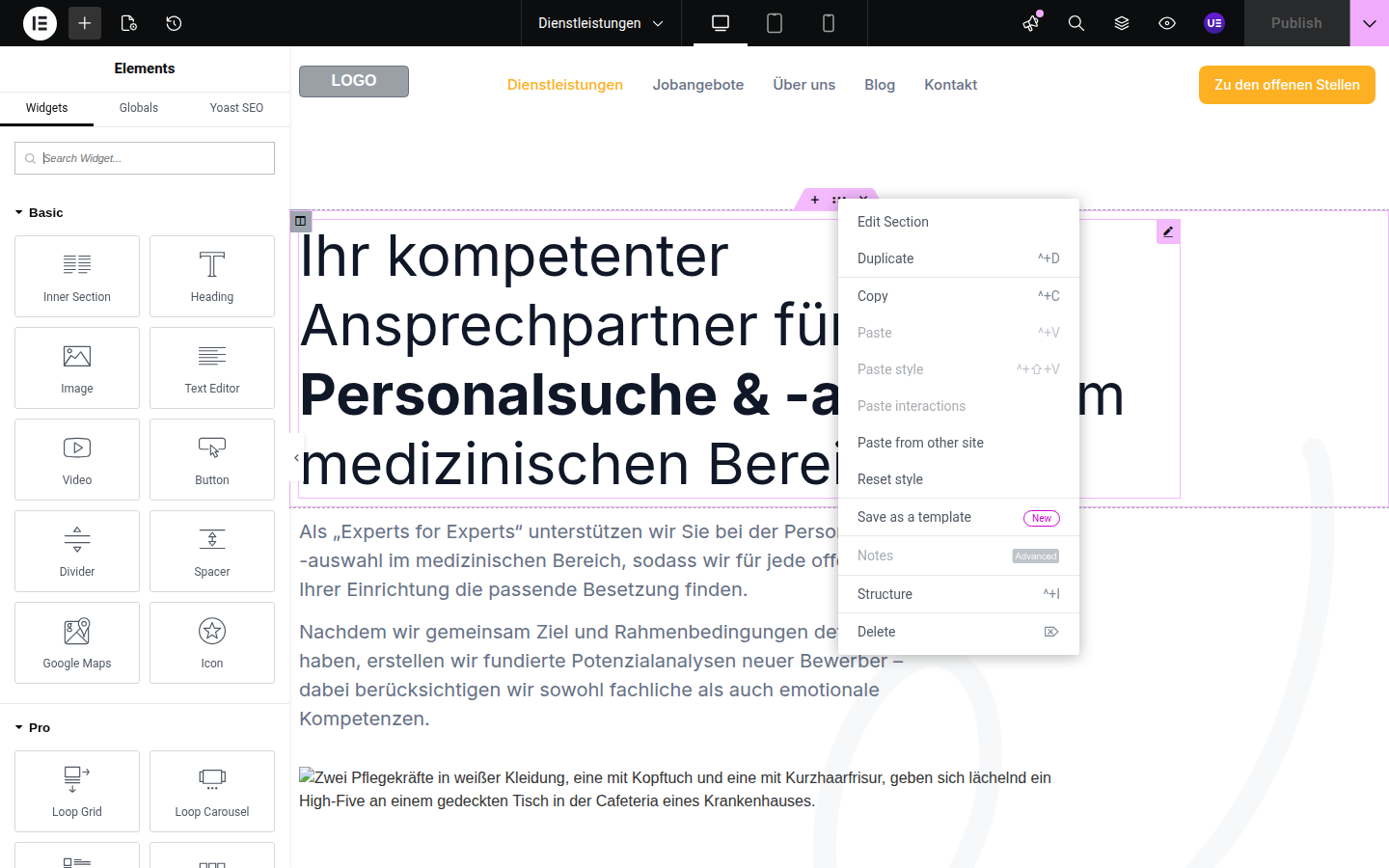
Some Elementor versions add a Copy All Content item when you right-click the empty canvas below the last section — if you see it, use it and skip to step 4. If you don't (it's a newer addition and not every install has it), save the whole page as a template the same way as step 3, just triggered from the page-level menu instead of one section's handle, so every section on the page is captured in one go.
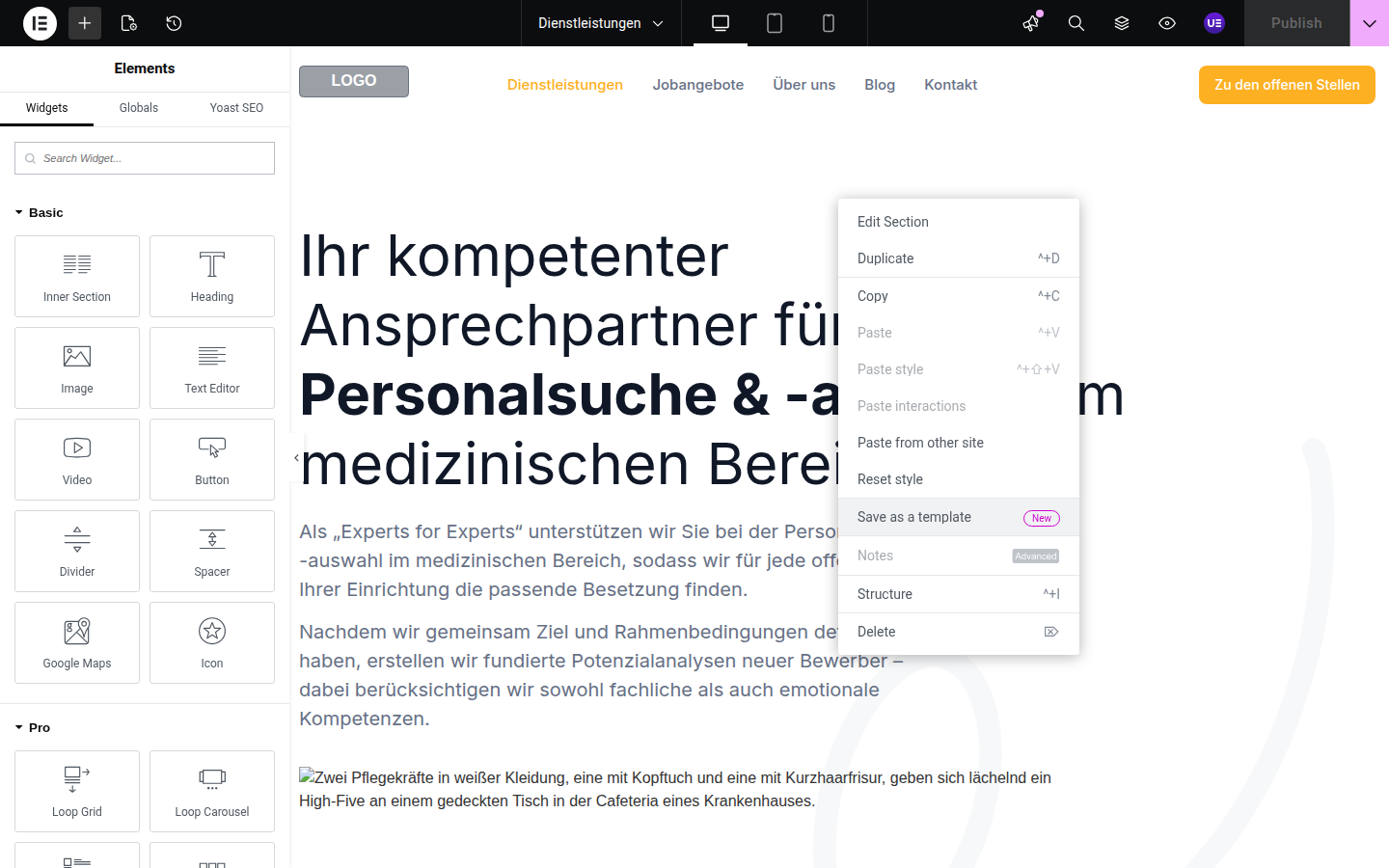
Right-click a section (or the page) and choose Save as a template. Give it a name and save it to Site Templates. This is the move for anything you want to reuse, or when you want the whole page in one file rather than a single clipboard copy.
In WordPress go to Templates → Saved Templates, hover the row for the template you just saved and click Export (labelled "Export Section" or "Export Template" depending on the type). That downloads a .json file — open it in a text editor and paste its contents into the converter below.
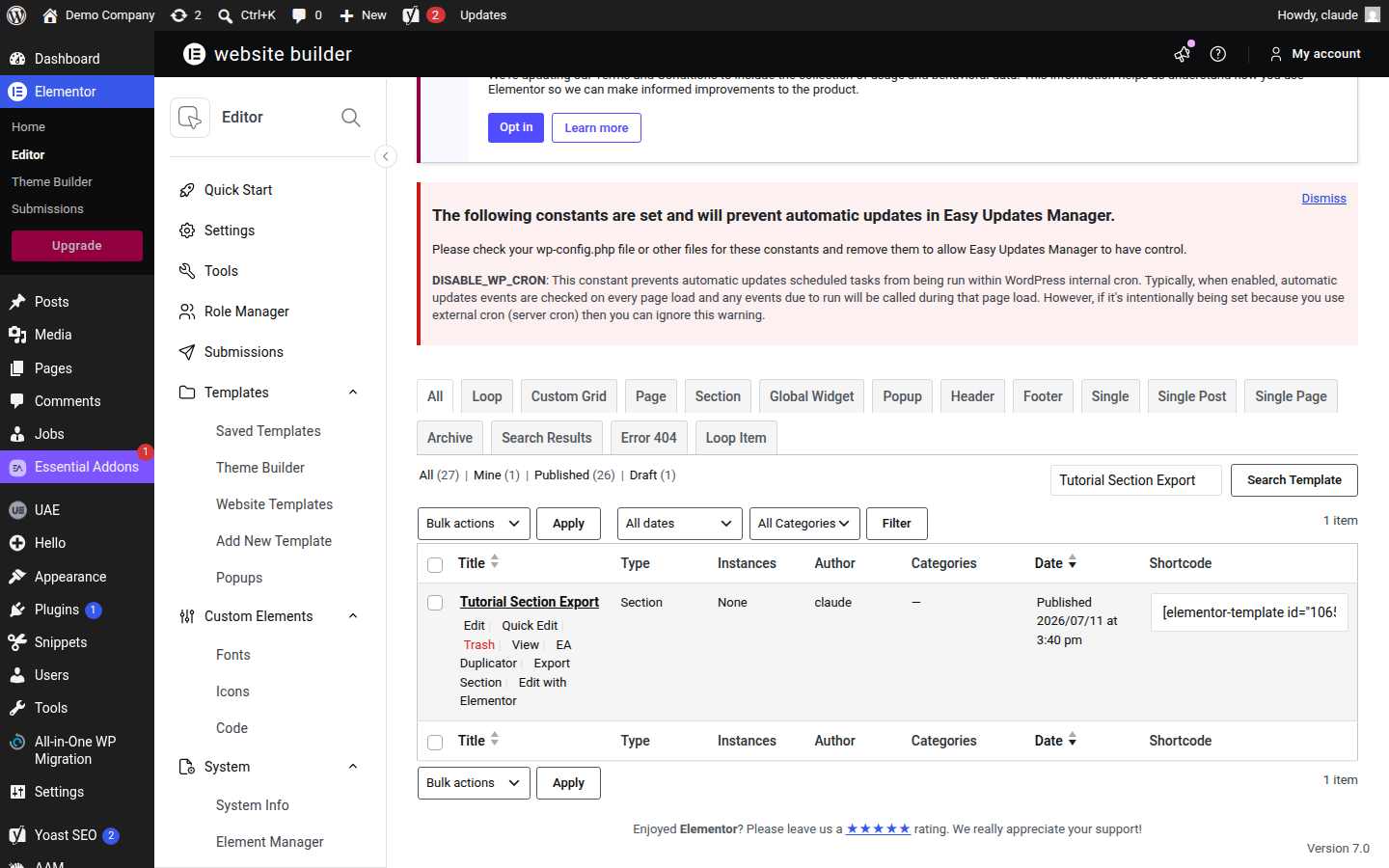
If a section shows a raw [elementor-template id="…"] shortcode, or looks like a Template widget, that's just a reference to a saved template — its content doesn't travel with your copy or export. You'll see the literal shortcode text where the content should be, as in the screenshot. Export that template separately (step 3) and convert it on its own, then place the result where the reference was.
![Elementor editor with a widget selected showing the unrendered [elementor-template id] shortcode instead of its content](https://wpconverters.com/wp-content/plugins/wpconv-landing/assets/howto/egb-step5-template-widget-caveat.png)
Paste your JSON into the converter, hit Convert, then Copy to Clipboard. In the WordPress block editor open ⋮ → Code editor, paste, and switch back to the visual editor. Use the Live Preview button first if you want to check the result before committing it to a real page.
ready→made converts your Figma designs straight into Gutenberg, Oxygen 6, Etch or clean HTML — real structure from a real layout engine.
Completely free, and no plugin at all — the output is native Gutenberg blocks that any WordPress install understands. Your design travels in one embedded style block on the page.
Any of: a right-click Copy from the Elementor editor, an exported template .json file's contents, or the raw _elementor_data of a page. The converter detects the format automatically.
Layout (sections, columns, flex and grid containers), headings, text, images, buttons, galleries, icon lists, spacers, dividers, tabs and accordions (as native collapsibles), testimonials, call-to-actions and more — plus colors, typography, spacing, backgrounds and your tablet/mobile overrides as media queries.
Dynamic widgets: a Posts grid or Navigation Menu queries your database live, so it can't become a static block — the converter skips it and tells you to use Gutenberg's Query Loop or Navigation block instead. Forms need a form plugin, and icon-font glyphs can't render without Elementor's fonts. Every skip is listed in the conversion notes.
Any current WordPress. Tabs and accordions convert to the Details block, which needs WordPress 6.3 or newer.
Sections become a Group with a Columns block inside, columns become Column blocks, and flex or grid containers become Groups. Heading becomes Heading (same h1 to h6 level), Text Editor becomes Paragraph (or Custom HTML when it holds several paragraphs or lists), Image becomes Image, Button becomes Buttons, Icon List becomes List, Spacer becomes Spacer, Divider becomes Separator, Video becomes Embed, Image Gallery becomes Gallery, Shortcode becomes Shortcode, and nested Tabs or Accordions become Details blocks. Icon Box, Image Box, Testimonial, Counter and Call to Action are rebuilt as a Group of heading, text and image blocks.
Three kinds. Dynamic widgets (Posts, Archive Posts, Navigation Menu) query your site live and are skipped with a note. Interactive behaviour does not carry over: classic Tabs, Toggles and Accordions become static collapsible sections, and carousels become a plain gallery. Styling that core blocks have no setting for (hover and motion effects, custom positioning) goes into the one embedded style block or is listed in the conversion notes. Images keep pointing at their old URLs until you re-upload them.
That is a different tool: the free HTML → Elementor converter takes plain HTML and rebuilds it as native Elementor sections and widgets, ready to paste into the editor.
Then use ready→made to convert the Figma design directly to Gutenberg.